Physical Security Keys (PSK)

Why do some customers need a Physical Security Key (PSK)?
When you access online banking, you must use a “security device” to help confirm your identity. This can be the Bank of Ireland mobile app on your smartphone or tablet, or a PSK. We recommend you use our mobile app. However, if this is not suitable for you we can provide you with a PSK.
What is a PSK?
The PSK generates instant codes to help you confirm your identity so you can log in and complete other banking tasks securely.
Any time you log in online, you will need your 365 PIN and a code that appears on your PSK. This helps keep your banking information safe.
Why use a smartphone or tablet?
Using our app on a smartphone or tablet is the quickest and easiest way to help keep your account secure. However, you can also use a PSK.
You should use a smartphone or tablet if:
- You want to keep using the Bank of Ireland mobile app
- You find it an easy and convenient way to bank
- You prefer a quicker, more streamlined online banking experience
Why use a PSK?
A PSK is suitable if:
- Your smartphone or tablet cant run the required operating system and you cannot upgrade or replace the device
- You still want to use 365 online through your web browser, even though you will not be able to use the 365 mobile app.
How to order a PSK or replace an existing PSK
- You can order a new or replacement PSK by calling us during business hours:
- 0345 736 5555
- +44 345 7365 555 (from anywhere else)
- Monday to Friday 9am to 5pm.
- Saturday 9am – 2pm.
- Bank holidays 9am to 2pm.
- Closed Sunday.
We’re open:
- You can order a new or replacement PSK by visiting us in one of our branches.
How to set up your PSK
Before you can use your PSK, follow the steps below to set it up. You’ll need your 365 User ID and 365 PIN for this.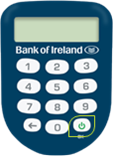
- Turn on PSK using the green OK button (under the number 9 key).
- Enter 1254.
- When asked to create a New PIN, type in a unique four-digit PIN that you will remember and press the green OK button. This will be your new PSK PIN.
- When asked, enter your new PSK PIN again, and press the green OK button.
- Now, go to 365online.com and log in. You will need your PSK to hand. You’ll also need to enter the last four digits of the serial number on the back of your PSK.

Once you have entered the last four digits of the serial number, select Activate on screen. Next, select Continue to login.
How to use a PSK for online banking
Once you have activated your PSK, you need to have it with you to log in to 365 online, and carry out activities such as:
- Setting up a new payee
- Making a payment
- Changing your contact details
Keep your account safe
We will never call, text or email asking you to share your six-digit passcode, one-time activation codes or your full 365 PIN. We will never ask for your full card details. Do not share them. Remember, we will never ask you to transfer money out of your account to protect yourself from fraud. For more information, visit our Security and Fraud section.
FAQs
- How to log in to 365 online using a PSK
Whenever you log in to 365online.com, you need to have your PSK ready.
- Go to 365online.com in your web browser and enter your user ID and date of birth, then select Continue.
- Enter the requested three digits of your 365 PIN, and select Confirm.
- Take out your PSK device and turn it on using the green OK button
- Enter the four-digit PSK PIN you chose when you set up your PSK.
Important: Entering the wrong PIN too many times will block your PSK device, and you will need to request a replacement PSK.
SELECT OPT will appear on your PSK screen. - Press number 1 on your PSK. A six-digit number will appear on the PSK screen.
- Go back to your web browser and type in the six-digit number from the PSK, then select Continue. You should now be logged in and have access to your accounts.
- How to add a payee or pay a bill using a PSK
- Log in to 365 online. Select Payments and choose what you would like to do.
- When you have completed the details to add a payee or pay a bill, you will be asked to select Continue.
- Enter the requested 3 of 6 digits from your 365 PIN, then Select Confirm
- Take out your PSK device and turn it on using the green OK button
-
Enter the four-digit PSK PIN you chose when you set up your PSK.
Important: Entering the wrong PIN too many times will block your PSK device, and you will need to request a replacement PSK. -
Follow the instructions on the 365 online screen.
- When prompted, press the number 2 on the PSK.
- A 4-digit code will appear on the 365 online screen. Type this 4-digit-code into the PSK.
- Once you have typed this into your PSK, the PSK will display a 6-digit number.
- Enter this 6-digit number on 365 online and select Continue
- How to make a payment using a PSK
- Select Payments and choose Send money or pay a bill
- Select the account you are transferring the funds from and choose the payee from the Pay to field.
- Enter the amount and select Continue
- Enter the requested 3 of 6 digits from your 365 PIN, then Select Confirm
- Take out your PSK device and turn it on using the green OK button
- Enter the four-digit PSK PIN you chose when you set up your PSK.
- Press number 3 on the PSK and enter the 6-digit number that appears on 365 online. An 8-digit number will appear on the PSK. Enter this on your computer or laptop.
- Select Continue.