New Mobile App

Discover what’s coming with our new mobile app and learn how your passcode helps protect your account. Plus, we’re not stopping here — new features and improvements are already being built to bring you an even better banking experience.

Right with you

A whole new look, smarter security, and more new features on the way.

A new design

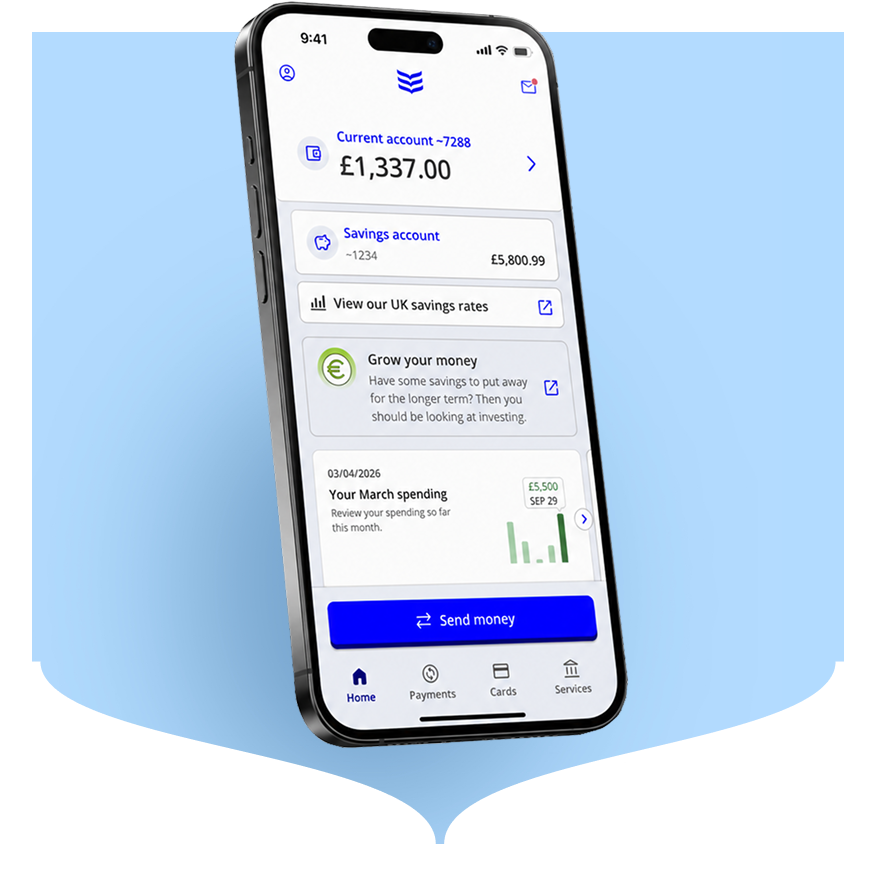
Our crisp new design is simpler and more intuitive. Bank with confidence, straight from the login screen.

Faster, more secure access

Your passcode now replaces your 365 PIN. It’s an extra layer of protection, with biometric options for quicker logins, payments and approvals.

Edit payment reference

You can now update your payee reference while making a payment. It’s handy when you want to add more detail.

Dark mode

Switch to dark mode to match your device settings and make things easier on your eyes.

Improved accessibility

We have made the app easier to use for everyone, with improvements to support a wider range of needs.

And that’s not all….

Stay tuned. More exciting features are on the way.

See more information about our mobile app


How to get the new app

If you have not received your app update yet, it’s on the way. We are rolling it out gradually to ensure everyone gets a smooth, stable experience. If you do not have automatic updates enabled on your device, please turn them on. You can also check for the update manually in the app store. For more information on automatic updates view our FAQs.

Recent additions and refreshed favourites
 

Passcode and biometrics

Your security is priority number one. Check out the advances in how we secure everyday banking.
Money Insights

Take control of your money now and into the future, with a deeper understanding of your spending habits.

Frequently Asked Questions

  • How do I enable auto updates for the Bank of Ireland app?

    Keeping your mobile banking app up to date is one of the simplest ways to protect your money and ensure you get the best possible experience. Enabling automatic updates means your app always stays current without you having to do anything manually.

    How to enable auto updates

    iPhone (iOS)

    1. Open Settings, then tap Apps
    2. Tap App Store
    3. Toggle App Updates

    Android

    1. Open the Google Play Store
    2. Tap your profile icon
    3. Select SettingsNetwork Preferences
    4. Choose Auto update appsand select your preferred option.

    Note: Steps may vary depending on your device model and software version.

    Why we recommend this

    1. Enhanced security

    Updates often include important security patches that protect your device and account from new threats. By keeping auto updates turned on, you ensure your app always has the latest protection.

    1. Better performance and reliability

    Updates often fix bugs, improve speed, and resolve issues that may affect how the app works. With automatic updates enabled, you get smoother, more reliable performance.

    1. Access to new features

    Bank of Ireland regularly releases new tools and features to make managing your money easier. When you’ve enabled auto updates, you get these improvements as soon as they’re available.

    1. Compatibility with your device

    As phone operating systems evolve, older app versions may stop working properly, or at all. Automatic updates help keep your app compatible with the latest versions of iOS and Android, reducing the risk of login failures or glitches.

  • How can I enable/disable dark mode?

    For iOS go to Settings – Display & Brightness – Appearance, and switch between dark and light.

    For Android go to Settings – Display, and switch between dark and light.

  • How to I edit a payee payment reference?

    To edit the reference that will be visible to the payee simply click the ‘Pencil’ icon within the payment journey

    Any changes you make to the reference will apply to this payment only.

  • How do I change the font size?

    To increase or decrease the font size in the mobile app, go to your phone settings.

    For iOS users, select Display and Brightness, then Text Size and increase or decrease as per your preference

    For Android users, select Display then Font size and style and increase or decrease as per your preference

  • How do I enable biometrics?

    Log in to the app and tap on your Profile at the top of the screen, then tap on Biometrics and Passcode. Depending on the type of device you are using, you should see a section called one of the following:

    • Biometric login or Fingerprint or Face recognition (for Android)
    • Touch ID or Face ID (for iPhone)
    • Passcode (there will be an option to update your passcode in this section).

    Tap on the relevant section to enable biometrics.

    For more information, please see our Important information about your Mobile Operating System page.