New Mobile App

Discover what’s coming with our new mobile app and learn how your passcode helps protect your account. Plus, we’re not stopping here — new features and improvements are already being built to bring you an even better banking experience.

Right with you

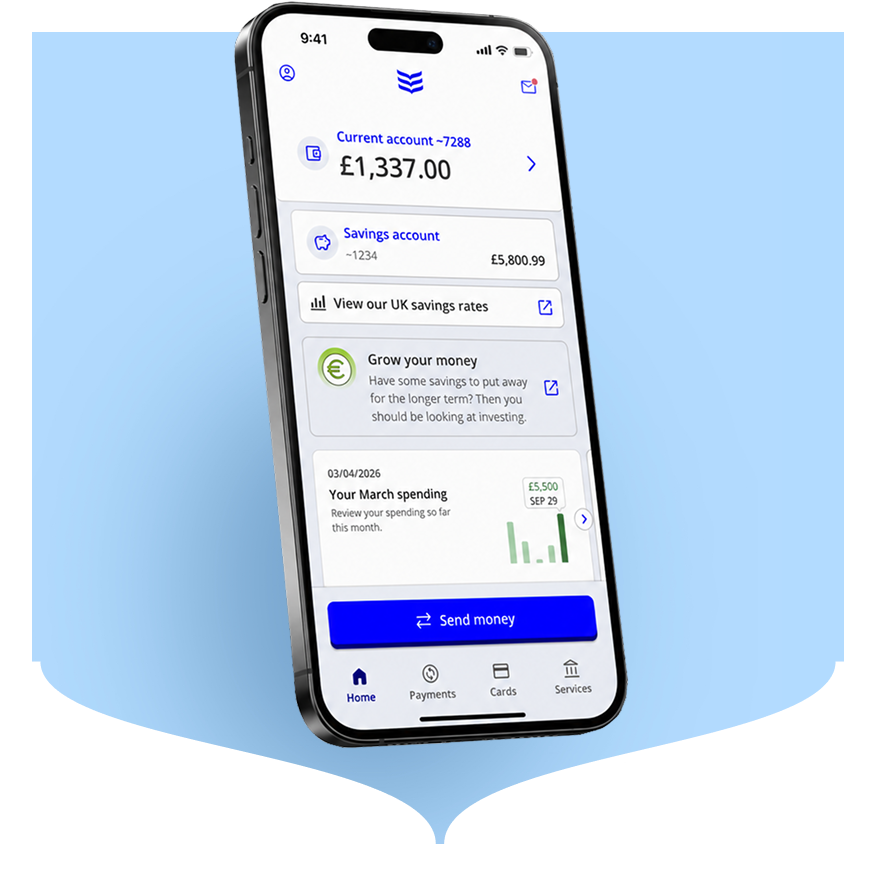
A whole new look, smarter security, and more new features on the way.

A new design

Our crisp new design is simpler and more intuitive. Bank with confidence, straight from the login screen.

Faster, more secure access

Your passcode now replaces your 365 PIN. It’s an extra layer of protection, with biometric options for quicker logins, payments and approvals.

Edit payment reference

You can now update your payee reference while making a payment. It’s handy when you want to add more detail.

Dark mode

Switch to dark mode to match your device settings and make things easier on your eyes.

Improved accessibility

We have made the app easier to use for everyone, with improvements to support a wider range of needs.

And that’s not all….

Stay tuned. More exciting features are on the way.

See more information about our mobile app


How to get the new app

If you have not received your app update yet, it’s on the way. We are rolling it out gradually to ensure everyone gets a smooth, stable experience. If you do not have automatic updates enabled on your device, please turn them on. You can also check for the update manually in the app store. For more information on automatic updates view our FAQs.

Recent additions and refreshed favourites
 

Passcode and biometrics

Your security is priority number one. Check out the advances in how we secure everyday banking.
Money Insights

Take control of your money now and into the future, with a deeper understanding of your spending habits.

Support Videos


How to log in

  • Transcript

    Welcome to our new and enhanced Bank of Ireland app.

    Here’s how to login. From the app home screen.

    You can choose whether to login using either biometrics or your 6 digit passcode.

    Check the Frequently Asked Questions on our web page for more information on how to set up biometrics on your phone.


How to send money

  • Transcript

    Welcome to our new and enhanced Bank of Ireland app.

    Here’s how to send money.

    You can do this directly from the homepage by tapping the Send Money button or the Payments button at the end of your screen.

    Only send money to people you trust.

    Always check the details before you send.

    From here, you can send money or pay a bill or transfer between your accounts.

    To send money from an account, select Send Money or Pay a Bill.

    Next, choose the account to send money from and the payee you want to send it to.

    Easy.


How to hide your balance

  • Transcript

    Welcome to our new and enhanced Bank of Ireland app.

    Here’s how to hide your balances, check and update your personal details, the devices you use, your data and more.

    To hide your balances, tap on the eye icon in the top right corner.

    To remove the Hide Balance option from your homepage, go to your profile and then tap on Privacy and Preferences.

    In the Privacy and Preferences section, you can toggle hide balances off.

    To update your personal details, tap on your profile icon in the top left of the homepage.

    From here, you can now check and manage the following.

    Your personal contact information.

    Your security devices, in other words, the phones or tablets you use for banking.

    The biometrics and unique passcode you use for safe banking.

    The data you share with other services through Open banking.

    Your privacy and preferences and security and legal information.


Sort code and account number

  • Transcript

    Welcome to our new and enhanced Bank of Ireland app.

    Here’s how to easily access and copy your sort code and account number directly from the app.

    On the homepage, just tap on your account balance.

    Your sort code, which is shown as NSC and account number, will appear under the balance amount.

    You can copy or share your sort code or NSC and account number directly from this screen by tapping on the share icon. Just like this.

    Handy.


Money insights

  • Transcript

    Welcome to our new and enhanced Bank of Ireland app.

    Here’s how to view your personalised money insights directly in the app.

    Just scroll down on the home screen and view all your latest insights in the carousel.

    It’s that easy.

Frequently Asked Questions

  • How do I enable auto updates for the Bank of Ireland app?

    Keeping your mobile banking app up to date is one of the simplest ways to protect your money and ensure you get the best possible experience. Enabling automatic updates means your app always stays current without you having to do anything manually.

    How to enable auto updates

    iPhone (iOS)

    1. Open Settings, then tap Apps
    2. Tap App Store
    3. Toggle App Updates

    Android

    1. Open the Google Play Store
    2. Tap your profile icon
    3. Select SettingsNetwork Preferences
    4. Choose Auto update appsand select your preferred option.

    Note: Steps may vary depending on your device model and software version.

    Why we recommend this

    1. Enhanced security

    Updates often include important security patches that protect your device and account from new threats. By keeping auto updates turned on, you ensure your app always has the latest protection.

    1. Better performance and reliability

    Updates often fix bugs, improve speed, and resolve issues that may affect how the app works. With automatic updates enabled, you get smoother, more reliable performance.

    1. Access to new features

    Bank of Ireland regularly releases new tools and features to make managing your money easier. When you’ve enabled auto updates, you get these improvements as soon as they’re available.

    1. Compatibility with your device

    As phone operating systems evolve, older app versions may stop working properly, or at all. Automatic updates help keep your app compatible with the latest versions of iOS and Android, reducing the risk of login failures or glitches.

  • How can I enable/disable dark mode?

    For iOS go to Settings – Display & Brightness – Appearance, and switch between dark and light.

    For Android go to Settings – Display, and switch between dark and light.

  • How to I edit a payee payment reference?

    To edit the reference that will be visible to the payee simply click the ‘Pencil’ icon within the payment journey

    Any changes you make to the reference will apply to this payment only.

  • How do I change the font size?

    To increase or decrease the font size in the mobile app, go to your phone settings.

    For iOS users, select Display and Brightness, then Text Size and increase or decrease as per your preference

    For Android users, select Display then Font size and style and increase or decrease as per your preference

  • How do I enable biometrics?

    Log in to the app and tap on your Profile at the top of the screen, then tap on Biometrics and Passcode. Depending on the type of device you are using, you should see a section called one of the following:

    • Biometric login or Fingerprint or Face recognition (for Android)
    • Touch ID or Face ID (for iPhone)
    • Passcode (there will be an option to update your passcode in this section).

    Tap on the relevant section to enable biometrics.

    For more information, please see our Important information about your Mobile Operating System page.

  • Where can I find the ‘Profile menu’ option

    The Profile menu can now be found in the top left corner of the homepage.

    Here you can access and update your:

    • contact details
    • email
    • phone number
    • address
    • security devices

    Please note that these sections are no longer available in the Services menu.

  • How do I log in?

    From the app’s home screen, you can choose the login method that feels easiest for you. You can sign in using Biometrics (like Face ID or fingerprint) or your 6 digit passcode, whichever you prefer.

  • Where do I find the Log Out option?

    You’ll find the Log Out button right at the bottom of the Profile menu.

  • How to hide your balance?

    Want a little extra privacy when you log in? You can easily choose whether your balances are visible.

    Hide or show your balance

    • Tap the open‑eye icon to hide your balances
    • Tap the closed‑eye icon to show them again

    The eye icon is available for everyone as soon as they sign in.

    Turn off the Hide Balance feature completely

    If you’d rather not see the eye icon at all:

    1. Open your Profile
    2. Go to Privacy and Preferences
    3. Switch Hide Balance from On to Off

    Once you do that, the eye icon disappears from your homepage.